General questions about Sungale Digital Signage Solution
- What sizes do your display units come in?
- Do you have a demo for me to see the website features before I buy?
- How much does your digital signage service charge?
- Do you offer free trial of the digital signage service? How long is the free trial?
- What is upload streaming , download streaming? Can I check my usage?
Digital Signage Device/Terminal Related Questions
- Why are contents not showing on my digital signage units?
- I have trouble with connecting to hotspot Wi-Fi network
- How to go to Settings on my digital signage units?
- How to setup remote control?
- Can I use the digital signage units without Wi-Fi? What happens if my units lose or re-connect to Wi-Fi?
- How to hide/show control bar?
- How far away can the unit be from my WiFi internet access point?
- How to update firmware on my digital signage units?
- How long will the content start playing after I sent from website?
- How many photos/videos can each display unit play?
- Can digital signage units play video files?
- How do I remove old files from my display unit and update with new files?
Digital Signage Service Platform/Website Related Questions
- I have issue registering my digital signage unit/account
- How much cloud storage does my account have?
- What size image do I use so it appears on the display units in full screen?
- How large of a video/photo/music file can I upload? How much content can I upload in each folder?
- I cannot login to my account/ forgot my password.
- How to change email address for my account?
- How to play content in certain order?
- How to play folders in certain order?
- How many display units can I add to my account?
- When I change content in the folder that I have already sent, do I need to send that folder again or will it update automatically?
- How to schedule content to display at certain times of the day?
- How can I manage music play? How will music play with other contents?
- How do I label my digital signage units?
- How do I remove a digital signage unit from my account?
- What does the "Connected" "Not Connected" status mean under the manage signage page?
- Why the current location is not showing correctly under "manage signage" page?
Q001: What sizes do your display units come in?
We have standalone digital signage models, comes in 7", 10", 14", and 19". We also have TV box solution which can connect to display screens through HDMI port, the sizes can vary from 21" to 42".
Q002: Do you have a demo for me to see the website features before I buy?
Yes, please reach out to sales@sungale.com for digital signage demo account information.
Q003: Do you offer free trial of the digital signage service? How long is the free trial?
Yes, you have a free trial of 30 days from the day you sign up your digital signage account.
Q004: How much does your digital signage service charge?
Sungale offers the most cost effective digital signage service. We offer free trial period. If you’d like to continue after trial period, we charge a monthly fee of $0.99 per month per unit, which covers 20GB cloud storage for each account, free unlimited upload streaming, and free 5GB download streaming. If download streaming is over 5GB, the charging rate is at $0.09/GB.
Q005: Why are contents not showing on my digital signage units?
Digital signage units need to have Wi-Fi connection to receive update from server. If your unit is not updating contents, please check the Wi-Fi connection on your units. First thing to try is to reboot your unit, then go to Settings, turn off then turn on Wi-Fi, make sure Wi-Fi is connected. Also double check connection is good by opening web browser to open any webpage.
Some content folders are set to play at certain time of day only, make sure the scheduled play time is met for such folders.
If your Wi-Fi setting and connection is all good, try clear local cache to have your unit re-download everything from the server. Here’s how, go to settings, click APPs, swipe left to show ALL APPs, look for app name "DigitalSignage", click it, then click the "clear cache" button. Your unit with go back to home screen, and start a fresh download of entire playlist.
Q006: I have trouble with connecting to hotspot Wi-Fi network.
Some public or hotspot Wi-Fi network needs to go through a webpage to establish connection. Such network cannot be used for initial setup digital signage units. Please find a simple network that can connect without webpage to finish initial setup, once initialization is done on your unit, you can switch the Wi-Fi setting to any network.
Q007: How to go to Settings on my digital signage units?
If you have CPF1068 or CPF791 digital signage units, which are touch screen models, bring up the control button bar by swiping upwards from bottom of screen, and keep pressing the vol- button several times, and the system setting screen will show up. If you have CPF1909, CPF1503, or KWS759, simply press "menu" button on the remote control – the up curving button, and the system setting screen will show up.
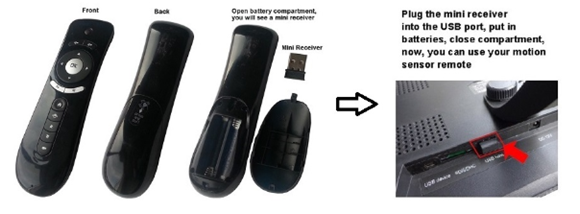
Q008: How to setup remote control?
Open the battery compartment of the remote control, remove the USB mini receiver from the battery cover, and plug it in to your digital signage unit.
Q009: Can I use the digital signage units without Wi-Fi? What happens if my units lose or re-connect to Wi-Fi?
The digital signage units need to communicate with server for initialization and to receive updates. Your units do need to have solid Wi-Fi connection to finish initial setup and to receive updates.
If you lose connection somewhat, your units will continue to display already downloaded contents, just won’t receive updates. Meanwhile your units will try to re-connect Wi-Fi in the background, if connection is recovered, it’ll resume regular communication with server, and download contents updates when available.
Q010: How to hide/show control bar?
This only applies to CPF1068 and CPF791. To hide control bar, touch the downward button to hide. Swipe upwards from screen bottom to bring back control bar.
Q011: How far away can the unit be from my WiFi internet access point?
This depends on your Wi-Fi signal strength. You can tell signal strength on your digital signage unit Wi-Fi setting screen.
Q012: How to update firmware on my digital signage units?
Please reach to support@sungale.com to check for system updates assistance.
Q013: How long will the content start playing after I sent from website?
It depends on your unit Wi-Fi network speed, and the content size you sent. Your digital signage units communicate with server every 5 minutes, as long as your units are connected to Wi-Fi, they will detect updates 5 minutes, and start downloading updates at your Wi-Fi speed, and start playing new content as soon as each new content is fully downloaded.
Q014: How many photos/videos can each display unit play?
The answer varies case by case, depending on the size of contents. The built-in memory of digital signage unit is 8GB, after necessary system and apps, about 5.5GB internal storage left, that’s over 5000 pictures or 500 videos, suppose average photo file size is 1MB, video file size 10MB.
Q015: Can digital signage units play video files?
Yes. Sungale Digital Signage units can play video files in MP4 format, music file in MP3 format, and picture file in JPG, JPEG, PNG, GIF formats.
Q016: How do I remove old files from my display unit and update with new files?
You need to make the change on the digital signage service website, login to your account, click "Manage Signage" on the top navigation bar, locate and click on the unit you’d like to make change, on the following page, at the Play List Info table, click the Remove x button. Your unit will pick up the update shortly (make sure Wi-Fi connection on the unit is good).
Q017: I have issue registering my digital signage unit/account.
For any issue regarding activation code or adding a digital signage unit to your account, please contact support@sungale.com, we’ll get back to you within 24 hours.
Q018: How much cloud storage does my account have?
You get 20GB free cloud storage.
Q019: What size image do I use so it appears on the display units in full screen?
It varies by different digital signage display units, 16:9 width to height ratio is recommended for full screen display.
Q020: How large of a video/photo/music file can I upload? How much content can I upload in each folder?
The digital signage service platform does not limit single file size, no matter what type. However there is a limit of 250MB size limit and 10 minute time limit for each content folder. So it’s up to you how to organize your contents. It’s recommended to consider your display units Wi-Fi condition before uploading contents, if Wi-Fi connection isn’t very fast, it’s better to break down to smaller files, so your display units can start playing new contents sooner.
Q021: I cannot login to my account/ forgot my password.
You can reset your account password by clicking the Forgot password link at login page, or contact support@sungale.com for more help.
Q022: How to change email address for my account?
Please contact support@sungale.com to update account login email.
Q023: How to play content in certain order?
You can designate content order in folder management page. After log in to the digital signage service platform, go to "Manage Content" page, choose a folder and click "Manage Folder" button. At the folder detail page, you can adjust individual file play order.
Q024: How to play folders in certain order?
You cannot designate folder play order. The digital signage display units play folder in the order of downloaded time, which ever folder finished downloaded first, will start play first. So you can arrange folder play order by pushing them one by one, after one folder is fully downloaded on your unit, then push another folder.
Q025: How many display units can I add to my account?
There’s no hard limit, you can add as many units as you want to your account.
Q026: When I change content in the folder that I have already sent, do I need to send that folder again or will it update automatically?
If a folder has already been pushed to your display unit, any change within that folder will automatically be updated to your display units, you do not need to push the folder again.
Q027: How to schedule content to display at certain times of the day?
You can designate play time of each folder. After login to the digital signage service platform, go to the "Manage Content" page, you can see a list of folders that you created, next to "Manage Folder" button, is "Display Time" setting button, by default it’s "N/A". If you’d like to set to certain time period of day for the folder to play, click the "N/A" button, a popup setting box will show up. And you can select or setup a new play time for this folder.
Q028: How can I manage music play? How will music play with other contents?
You can upload MP3 music file in any folder, and the music file will play as background music when photo file slid show. Music will loop from beginning when sequence of photos finishes slide show.
Q029: How do I label my digital signage units?
You can set alias for all your display units in any manner that’s easier for you to identify them. After login to the digital signage service platform, go to the "Manage Signage" page, choose a unit and click "Manage" link at the end of the list, on the following page, you can update Alias setting for that unit and save the setting .
Q030: How do I remove a digital signage unit from my account?
You can temporarily remove a unit from your account, and all pushed contents will be removed from that unit. You can do this by login to the digital signage service platform, go to "Manage Signage" page, choose a unit and click "Manage" link, and click "disconnect" on the following page. If you’d like to completely remove a unit from your account, please contact support@sungale.com
Q031: What does the "Connected" "Not Connected" status mean under the manage signage page?
The digital signage units communicate with server periodically to check for updates. The "Connected" "Not Connected" status under "Manage Signage" page shows if a unit is communicating with server, and implies if a unit Wi-Fi connection status. The status may not be real time, but if you see a status of a unit is constantly "Not Connected", it’s better to check the unit powering and connection status.
Q032: Why the current location is not showing correctly under "manage signage" page?
The "Current Location" information can only be feed back when a unit is communicating with server. If a unit is powered off or lost Wi-Fi connection, the digital signage service platform cannot display correct location information. When a unit has restored Wi-Fi connection, and is communicating with server, the location should be updated shortly.
Q033: What is upload streaming , download streaming? Can I check my usage?
Upload streaming means contents uploaded from your computer to cloud server, download streaming means contents your units download from the cloud server. For instance, you upload several pictures to a folder, and the folder size comes to 1 Gigabyte, this generate 1 GB upload streaming. Then you pushed the folder to all of your devices, each device need to download 1GB of pictures, then it generates 3 GB of download streaming. You can check your current month usage at the billing management page.